The Outlook Calendar app seamlessly syncs with your Outlook calendar to display upcoming schedules and events directly on your digital signage screens using EasySignage.
How to Add Microsoft/Outlook Calendar to Digital Signage
- Open the management console.
- Select the playlist and navigate to the layer where you want to add Outlook Calendar.
- If the layer has no media, the apps dialogue will open. Otherwise, click on Add New.
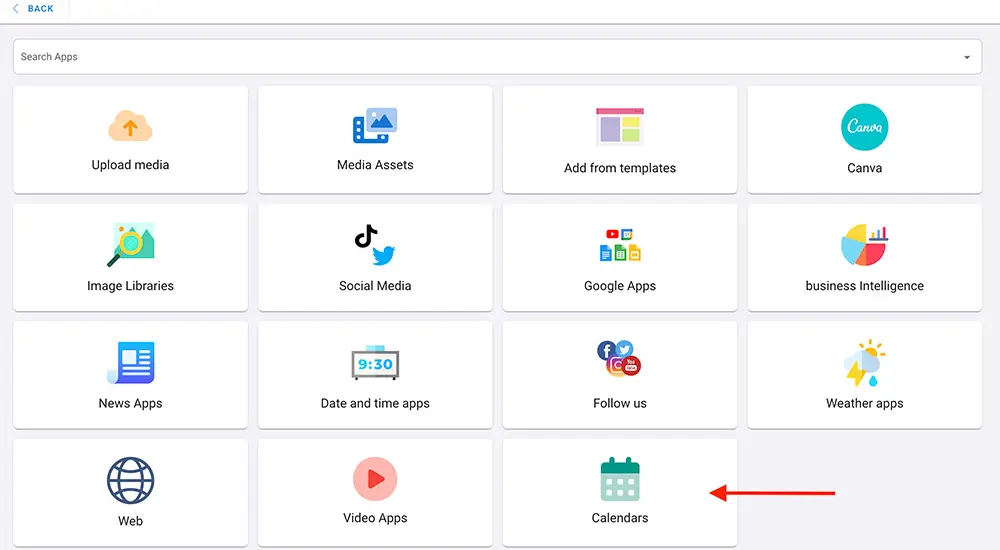
- From the Apps page, select Calendars.
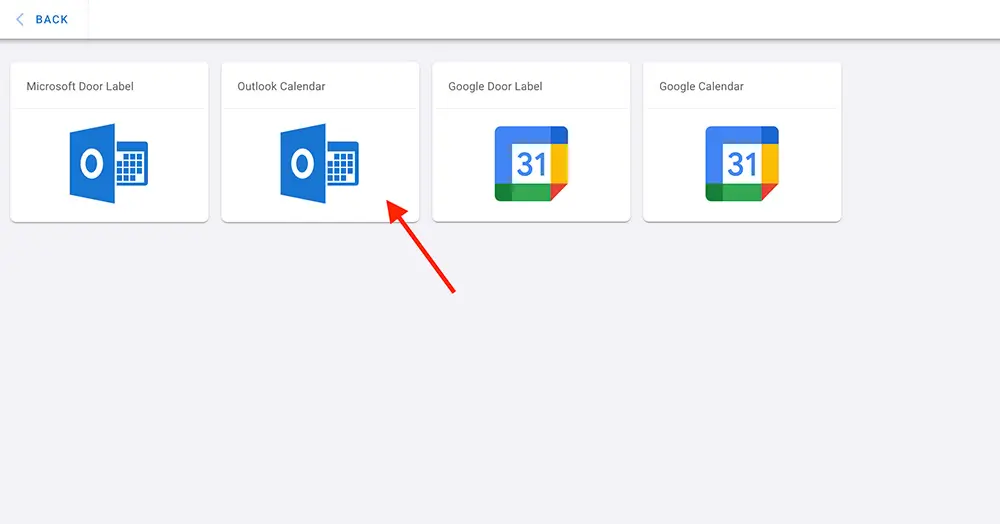
- Click on Outlook Calendar.
- Click on ADD/REFRESH ACCOUNT.
- Sign in to your Microsoft Account to grant access to the app.
- Enter your email address and password, then click Sign in.
- Your Microsoft Account is now connected.
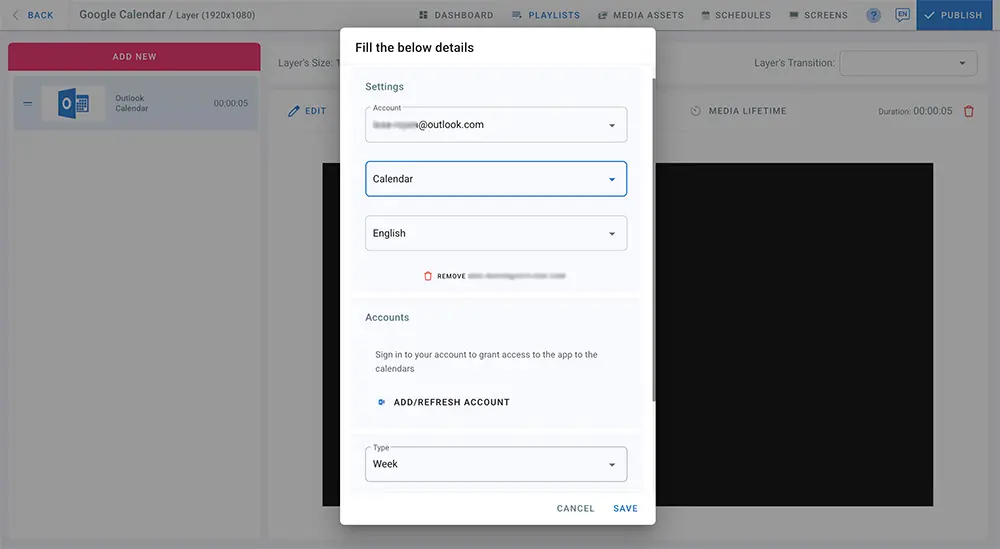
From the drop-down list, choose a calendar you wish to display.
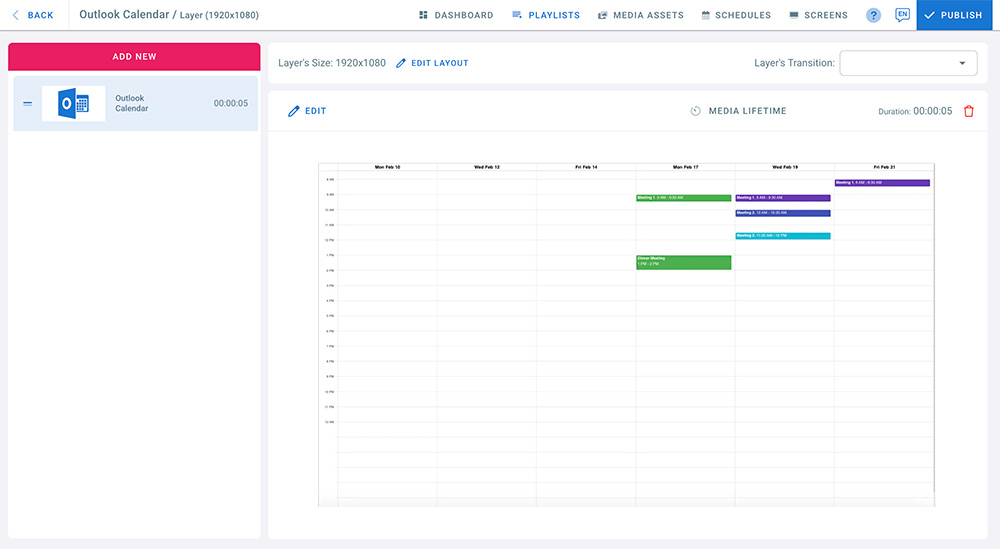
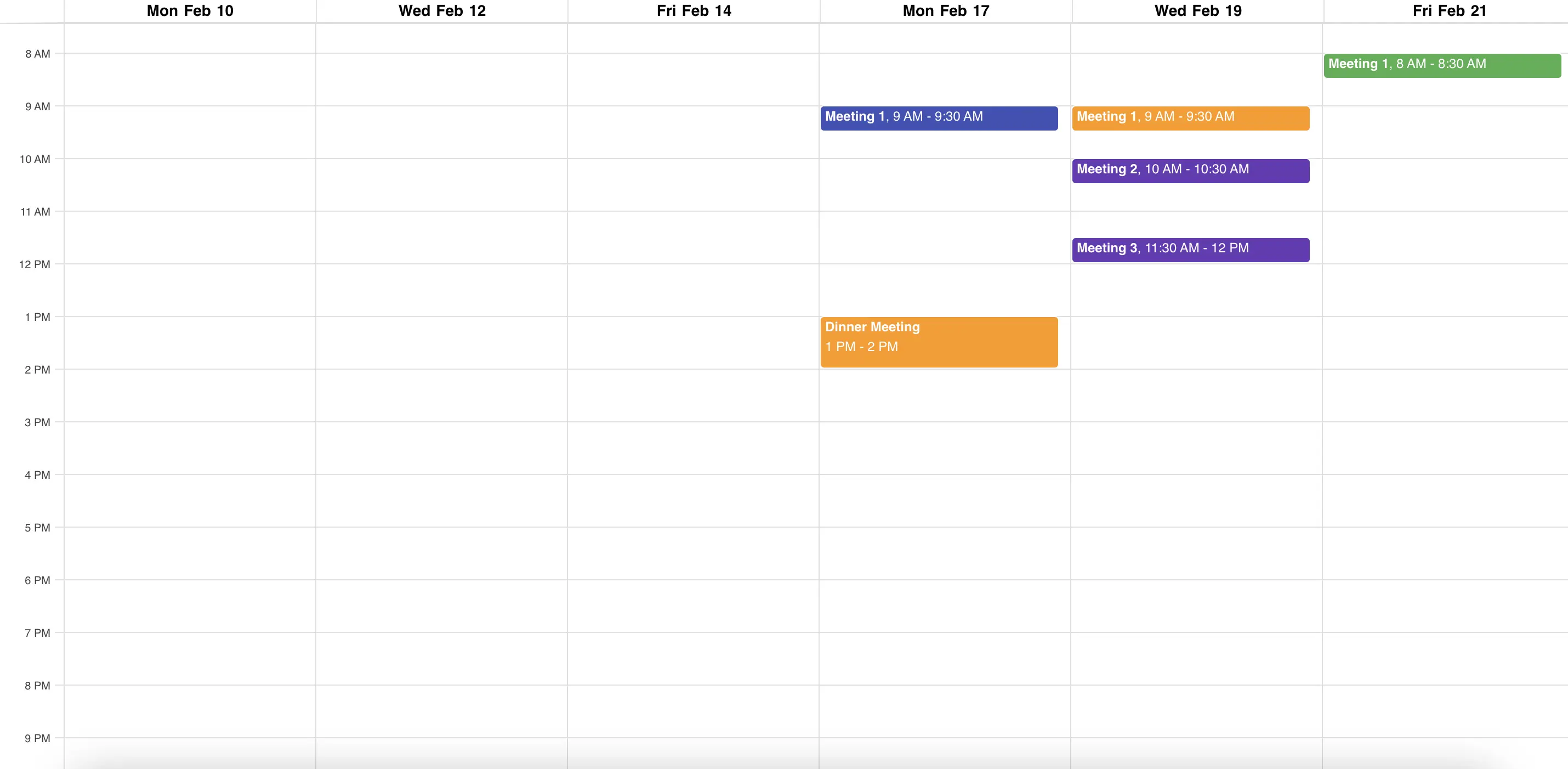
In the Type field, choose how you want to view your calendar: by day, week, or month.
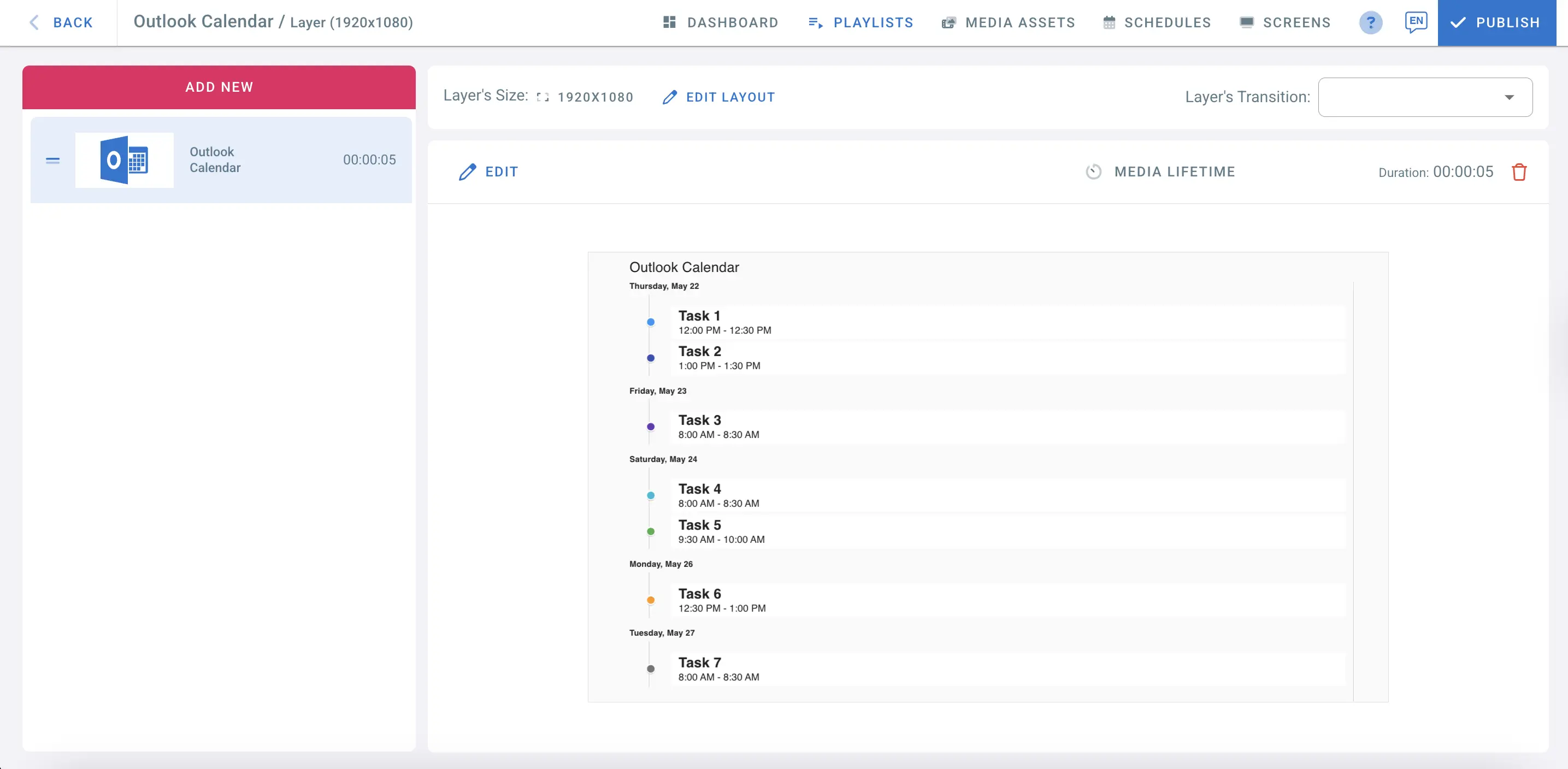
You can also select the “List View” to display tasks in a list format. Enable “Auto-Scroll Interval” and set the duration in seconds for automatic page scrolling.
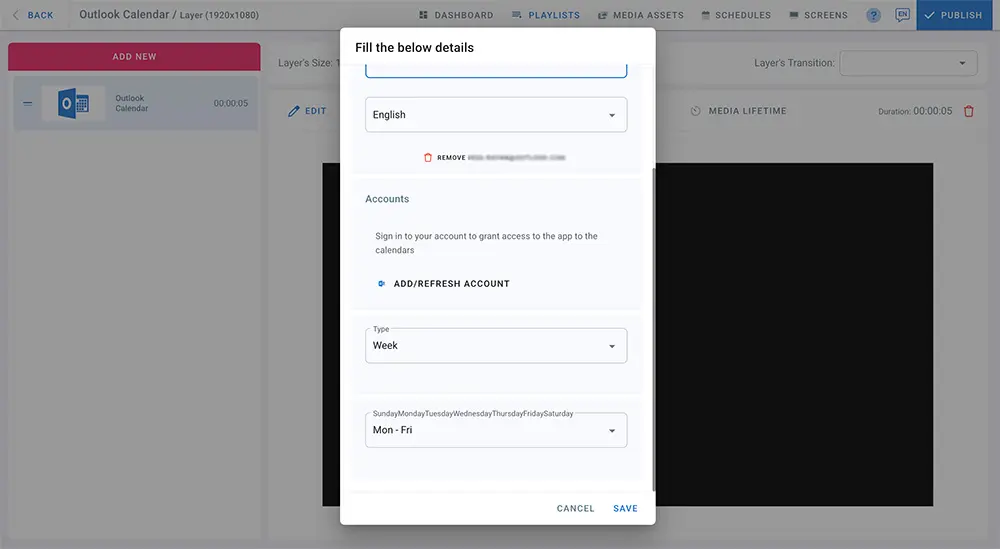
- Click Save.
Weekly View:
List View:
- When you finish editing, click on Publish to display the Outlook Calendar view on your screen.
Caching
The calendar remembers the events it showed last time, so a screen that has just started up can show the schedule straight away instead of waiting. That is what makes the calendar appear quickly, and it is why Disable cache is switched off to begin with.
Turn it on only if one screen shows more than one calendar and they get mixed up — for example, a calendar briefly showing another calendar’s events. Each calendar will then always wait for its own events, which takes a little longer to appear on the screen.
- Click on EDIT on the calendar layer.
- Under Caching, check Disable cache (always wait for fresh calendar data).
- Click Save, then Publish.